Kindle Jailbreak Compatibility Quick Reference
Covers all current and discontinued Kindle models · Firmware version requirements for jailbreaking each model
How to check your firmware version: On your Kindle: Menu → Settings → Menu → Device Info, where you will see the "Firmware Version".
Before jailbreaking: To prevent your Kindle from auto-updating during the jailbreak process, it is strongly recommended to fill the storage to leave less than 100MB free and delete any .bin files from the root directory of your Kindle.
| Model | Jailbreakable Firmware | Status | Tutorial |
|---|---|---|---|
| Kindle 11, KPW 5/6, Scribe 1/2, Colorsoft | ≤5.19.6 | Specific firmware only | View Tutorial |
| Kindle 11(KT 4/5/6)、KPW 4/5/6、KO3、Scribe 1/2、Colorsoft | 5.16.3~5.19.5 | Specific firmware only | View Tutorial |
| All Kindle models | 5.16.4 ~ 5.18.3 | Specific firmware only | View Tutorial |
| KPW5, Kindle 10/11 | 5.19.2 or 5.18.1.1.1 | Specific firmware only | View Tutorial |
| KPW5, Kindle 11, KO3 | 5.16.4~5.18.6 | Specific firmware only | View Tutorial |
| All Kindle models | 5.18.1 ~ 5.18.5 | Specific firmware only | View Tutorial |
| All Kindle models | <5.18.1 | Specific firmware only | View Tutorial |
| KS, KO 1/2/3, KV, Kindle 7/8/10/11, KPW 2/3/4/5 | ≤5.16.2.1.1 | Specific firmware only | View Tutorial |
| KO 1/2/3, KV, Kindle 7/8/10, KPW 2/3/4/5 | 5.12.2.2 ~ 5.14.2 | Specific firmware only | View Tutorial |
| KO 1/2/3, KV, Kindle 7/8/10, KPW 2/3/4 | 5.10.3 ~ 5.13.3 | Specific firmware only | View Tutorial |
| KPW4 | 5.10.2 ~ 5.13.3 | Specific firmware only | View Tutorial |
| KPW4 | 5.10.0.1~5.10.1.3 | Specific firmware only | View Tutorial |
| KPW3 | 5.8.9.0.1 or 5.9.6.1 | Specific firmware only | View Tutorial |
| K10 | 5.11.0 | Specific firmware only | View Tutorial |
| KO2 | 5.9.0.5.1 or 5.9.0.6 | Specific firmware only | View Tutorial |
| KO 1/2, KV, KPW 2/3/4, K7/8/10 | ≤5.8.7 | Special firmware required | View Tutorial |
| KPW2, K5, KT, KPW1, and KT2 | ≤5.4.5.1 | Firmware downgrade required | View Tutorial |
| KPW1 | <5.4.4 | Firmware downgrade required | View Tutorial |
SpringBreak is a Kindle jailbreak method released by Penguins184, with official instructions published on KindleModding.
Like WinterBreak, SpringBreak exploits a vulnerability in the Kindle store-page cache to elevate privileges. Amazon patched the flaw shortly after WinterBreak shipped, forcing the device to wipe the store cache on every disconnect. To get around this, SpringBreak fills the cache directory with 5,000 nested folders — too deep for the Kindle to delete — so the replaced cache survives and the exploit succeeds.
How it works: Fill the cache tree, keep the swapped cache alive, then trigger the privilege-escalation bug. No disassembly required. For more technical detail, read the author's write-up.
Supported devices
This method only supports the following devices running firmware 5.19.2, 5.19.2.0.1, or 5.18.1.1.1:
Kindle Paperwhite 5 (KPW5 / PW5)
Kindle Paperwhite 5 Signature Edition (KPW5SE)
Kindle Paperwhite 4 (KPW4 / PW4)
Kindle 10 (K10 / KT4)
Kindle 11 (K11 / KT5)
Before you begin: ① The device must be able to access the Kindle Store; devices signed into a China account must switch to another region (US or JP). ② Leave enough free storage — filling the nested folders needs headroom. ③ Keep Airplane Mode on throughout to block automatic firmware updates.
Steps
Turn on Airplane Mode and restart the Kindle to clear the store cache.
Connect the Kindle to your computer via USB until it enters USB drive mode.
Run SpringBreak to fill the nested directories:
Windows: download springbreak.zip, unzip it, and run
springbreak.exe.macOS / Linux: open Terminal and paste:
curl -L https://github.com/KindleModding/SpringBreak/releases/latest/download/springbreak.zip -o springbreak.zip && unzip springbreak.zip && cd springbreak && chmod +x ./springbreak-darwin && ./springbreak-darwinEnter the number matching your device and press Enter; the program starts filling the cache directories:
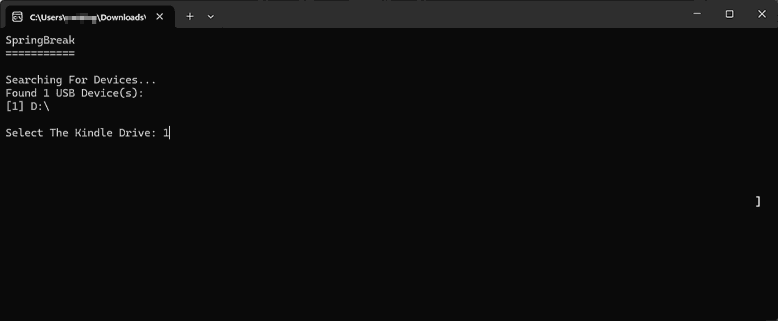
Filling nested folders
When progress hits 100%, press Enter to quit:
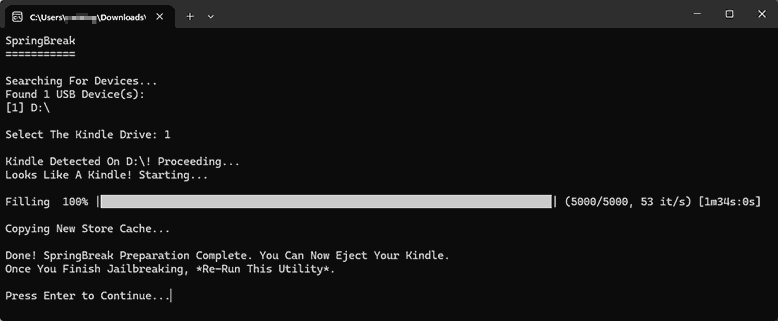
Done filling — press Enter to exit
Disconnect USB, tap the Store icon on the Kindle, and turn off Airplane Mode when prompted.
The Store loads the SpringBreak page:
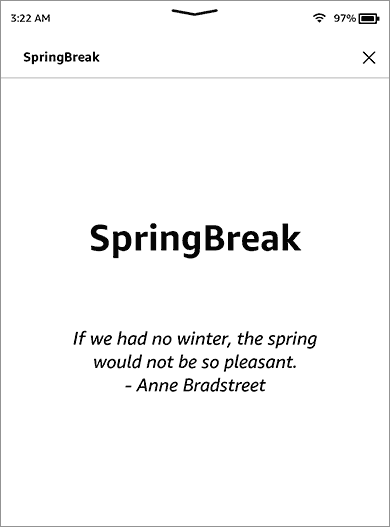
SpringBreak page inside the Store
The Store then loads the Amazon Kids+ page and appears frozen — this is normal. Do not force a restart; wait 4–5 minutes until the screen below appears (ignore the error dialog):
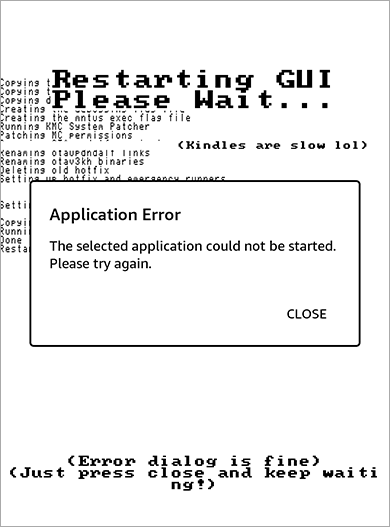
Jailbreak succeeded
After success, reconnect the Kindle, run SpringBreak again, and follow the prompts to remove the nested directories. Press Enter to exit when progress reaches 100%.
Important: Whether you succeed or hit a snag, always finish the cleanup in step 9 before retrying — otherwise the Kindle adds 10+ minutes of waiting on reboot. If step 9 hangs for over 15–20 minutes or kicks you back to the home screen, your network likely cannot reach the URLs the jailbreak needs; try a different network.
Installing plugins
SpringBreak automatically installs the Hotfix and the KPM package manager. Install, upgrade, or uninstall plugins (e.g. KOReader) from the Kindle search bar:
;kpm install koreader
;kpm upgrade koreader
;kpm uninstall koreader
Enter ;kpm to list all available commands.
Plugin compatibility: From firmware 5.16.3, Kindle's EABI switched from armel to armhf, so you need HF-capable plugins (e.g. MRPI and KUAL — see the KindleModding install guide). To use non-HF plugins, downgrade the firmware below 5.16.3 first.
© "Ereadertoolbar" Original Article. Please credit the source and include a link back to the original post when republishing. https://ereadertoolbar.xyz/en/tutorial/article/springbreak-jailbreak-kindle-5192/